FAQ
FAQ Template
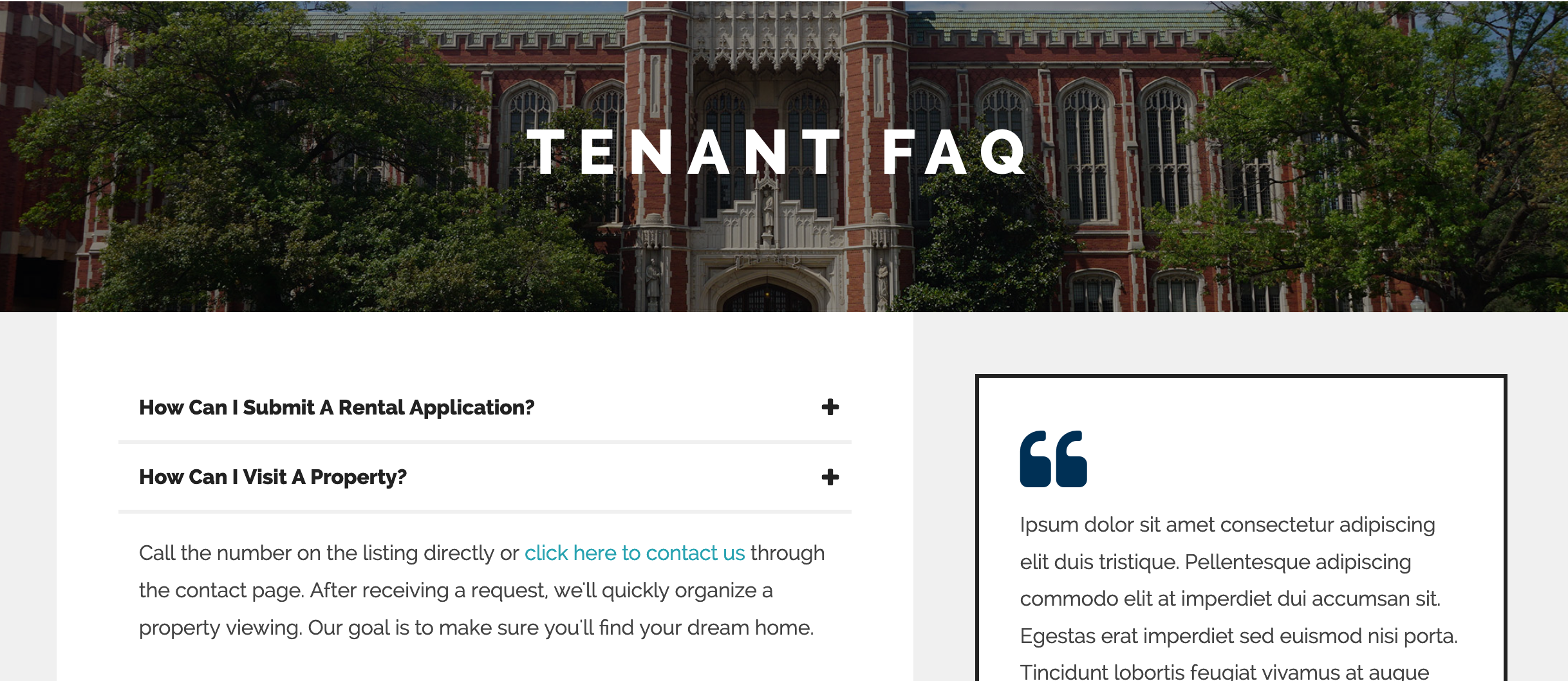
Like the Default template, the FAQ Template has its content on the left and sidebar on the right. However, the content appears in an Accordion, allowing users to click on a question and read the answer. This helps users find their question quickly, wihout needing to scroll through a wall of text to do so.
In order to make changes to your FAQs, we'll use the new Frequently Asked Questions section at the bottom of the Content tab.
- From the Pages tab, click on the FAQ Page you would like to modify.
- Click on the Content tab if its not already selected.
- Scroll down to Frequently Asked Questions.
To modify or rearrange an existing question:
- Reorder them by dragging the Question form the ☰ handle on the left.
- Click on in the top-right to expand the question and edit the answer.
- Click on to delete the question.
- Click the Save button in the top-right corner of the page to save your changes.
To add a new question:
- Scroll to the bottom of the list and click the +Add Item button.
- Add a value to the Question field (including question mark).
- In the Answer section, enter your answer in Markdown.
- Click the Save button in the top-right corner of the page to save your changes.